Method 1: a zombie video generator (step by step)
This is the fastest route, and the one we built. The prompt, the beat timings and the soundtrack direction are already set; you supply the faces.
- Choose two photos. One of you (the survivor) and one of the person who turns. Front-facing, sharp, well lit, one person per photo, no sunglasses. If you only have a photo of the two of you together, use it in the first slot: the person on the left becomes the survivor.
- Upload them. On the generator, drop your photo into Survivor (you) and the other into Who turns. Each upload passes an automated safety check before it is stored.
- Pick the scene. Zombie love story is the viral four-beat version. Zombie hug is shorter and ends on the embrace, which suits pets, parents and friends. Your own story lets you write the scene yourself.
- Set the options. Length 5–15 seconds, format 9:16 / 16:9 / 1:1, quality 480p–1080p depending on the model. The defaults (12s, 9:16, 720p, Standard model) cost 10 credits.
- Generate and download. Tick the permission box and press Generate video. You can leave the page; the clip is saved under My videos. Download the MP4 and post it.
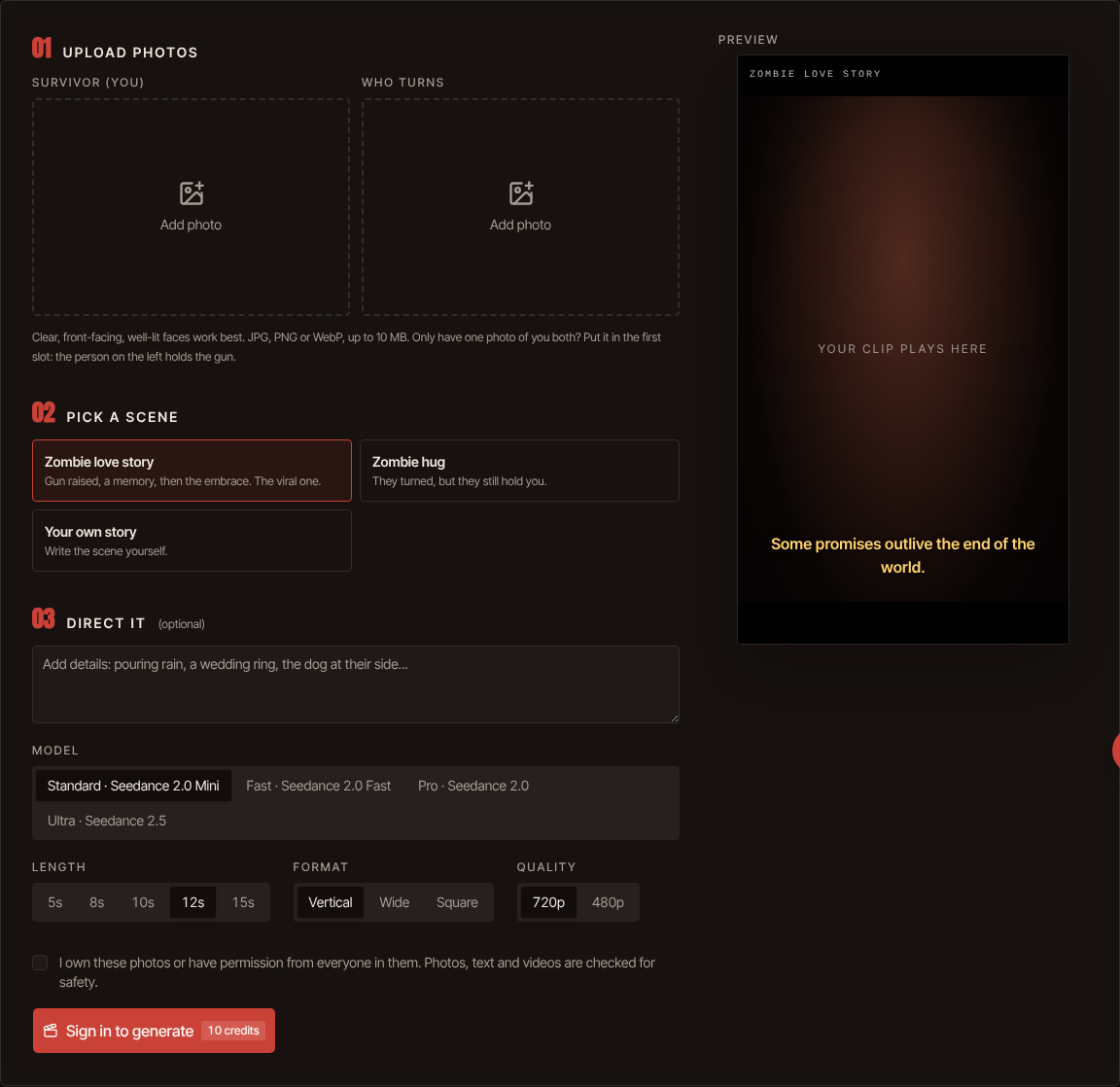
A standard video (Seedance 2.0 Mini, 720p, 12 seconds) costs 10 credits. Credits are valid for 365 days, and a render that fails is refunded to your balance automatically. Packs start at $6.99; see pricing.
Method 2: a prompt in a general video model
If you already pay for a video model, you can run the trend yourself. Copy the full text from our zombie love story prompt page, attach the two photos as references, and set the clip to 12 seconds and 9:16.
- Make sure the model accepts two reference images. With one, the second face is guessed from text and rarely looks like the person.
- Turn on audio generation if the model has it, or add a soundtrack in your editor.
- Expect a retry or two. Most general tools charge for failed or unusable renders.
Method 3: an editing template
Video editors and template apps sometimes offer a zombie or hug template. You pick the template, add photos and it applies a preset motion. This is the cheapest route when the template is free, but templates usually animate one photo at a time and rarely reproduce the full standoff-to-memory story.
The three methods side by side
| Generator (ours) | Prompt in a video model | Editing template | |
|---|---|---|---|
| Effort | Upload two photos, one click | Write or paste a prompt, tune it | Pick a template, add photos |
| Story beats | All four, timed for the length you pick | Depends on your prompt and model | Usually a single motion |
| Faces | Two reference photos | Depends on the model | Often one photo |
| Sound | Soundtrack included | Depends on the model | Template music |
| Cost | $6.99 per video, down to $2.83 | Your existing plan | Often free or subscription |
| Failed renders | Refunded automatically | Usually charged | n/a |
Our honest take: if you already have a video-model subscription and enjoy prompting, method 2 is good value. If you want the trend exactly as it looks on TikTok in one try, method 1 is the safest. For a broader look at the tools, read our dated comparison.
Tips for a better result
- Face size matters most. The face should fill at least a quarter of the photo. Crop group shots before uploading.
- Match the light. Two photos taken in similar light blend better through the match cut.
- Keep it vertical for TikTok, Reels and Shorts. Use 16:9 only for YouTube or a desktop slideshow.
- Add one detail, not five. "Pouring rain" or "a wedding ring" in the direction box works; a paragraph of extras confuses the model.
- Post with a caption. The clip has no dialogue on purpose; the caption is where it becomes yours.
Questions
How long does it take to make the video?
Uploading and choosing takes about a minute; the render usually finishes within a few minutes. You can close the page while it renders.
Do I need two photos?
Two separate photos give the most accurate faces. A single photo with both of you works too: the person on the left becomes the survivor.
Can I make it on my phone?
Yes. The generator works in mobile browsers; upload from your camera roll and download the MP4 straight to your phone.
Is there a CapCut template for the zombie trend?
Template availability changes often and differs by region, so we do not list one. Templates usually animate a single photo; for the full four-beat story with two faces, use a generator or a prompt.
What if the video comes out wrong?
If the render fails, the credits are refunded automatically. If it renders but a face drifts, try a sharper, front-facing photo; the same photos usually give similar results.